|
|
306 Yucca Park, Playa de Fañabe,Costa Adeje, Tenerife |
|---|
|
|
306 Yucca Park, Playa de Fañabe,Costa Adeje, Tenerife |
|---|
|
|
Guest PackPlease select the part of the "Friends Pack" that you wish to view.
306 Yucca Park - TV


There is a Sony 55" smart TV provided for your use.
The remote control should be used at all times as there are
To turn the TV on or off use the green top button as shown.
To select TV, Media Box, UK TV or DVD press the
"SOURCES"
After making your selection press the "OK" button in the centre
Please leave the TV on "Standby" using the green "POWER" button at
Your Viewing Choices
The following selections are available on this television, and each
HDMI 1 UK TV HDMI 2 Media Box (with over 2,000 films for free viewing) HDMI 3 Blu-Ray & DVD Player TV Local FREEVIEW with a few English speaking stations. Please press buttons on the remote controls very gently as we had to replace the previous TV due to the remote being faulty, probably due to the buttons being pressed too firmly. 1. British TV Digibox (Mag 250)Select UK TV - HDMI 1 using the main TV remote control (see previous page), or just press the "TV" button on the main TV remote. The UK-TV box is the small box on top of the DVD player. When it is in "Standby" the blue light is bright, and when "ON" the blue light is dim. The UK-TV remote is not now required as the box can be controlled with the main TV remote. If preferred you can still use the UK-TV remote. To watch UK-TV just press the "TV" button on the main TV remote. If the UK-TV box was OFF the TV will display a menu with "Power" highlighted, just press the "OK" button to turn ON the UK-TV box, and after a short delay the UK-TV box will turn on (blue LED goes dim), and UK-TV menu will be displayed. Alternatively, using the main TV remote press the "Sources" button, then navigate to "UK-TV HDMI 1" and press the "OK" button. If the UK-TV box was OFF the TV will display an option to "Turn It ON", just press "OK" and after a short delay the UK-TV menu will be displayed. The UK-TV menu can now be fully controlled using the navigation & "OK" buttons on the main TV remote, or the UK-TV remote, - both do exactly the same thing. When watching any channel a press of the "OK" button on the main TV remote will display the UK-TV menu listing, and using the main TV remote navigation buttons the desired TV channel can be selected, press the "OK" button to view your selected channel. If you prefer to use the "UK-TV Box" buttons select your desired channel with either the left + / - buttons above the numbers, or select the channel number you require. Alternatively, select the EPG by pressing the blue button at the top left of the remote to view an onscreen listing of all available channels. The time shown for the EPG may be 1 hour ahead of local time. Currently, this box can supply all BBC & ITV channels, most Channel 4 & 5 variants, & some others, and also features "Catch-Up TV". As well as UK TV, this unit can also receive UK Radio, surf the web, view YouTube videos, get your latest horoscope, get a local weather forecast (I predict it will be hot !), and even play a few simple memory games. See further down this page for details of how to access those features. To access catch-up TV, where almost any program broadcast within the last 14 days can be viewed, when in TV mode : 1) Press "OK" to show a list of channels. 2) Use the "UP" or "DOWN" arrows to select a channel. 3) Press the "Right" arrow, followed by the "LEFT" arrow 4) Use the arrow buttons to select a date & press "OK" 5) Navigate to your choice of program and press "OK" to view it. Like SKY or Virgin, you will normally get the last few minutes of the preceding program before your chosen program begins. You can pause, fast-forward or rewind when watching Catch-Up TV, but not when watching live TV. When zooming forward or backward the picture is frozen, so it can be difficult to judge how far to go.
To make visiting websites easier on the TV we have provided a remote keyboard.
If the UK TV totally freezes please reboot the UK TV box, by removing
the power cable for about 10 seconds, as shown on the right.
If the router is rebooted, please wait 2 ~ 3 minutes, then reboot the TV Box again.
2. Media BoxUsing the TV remote select Media Box - HDMI 2 (See previous page) The remote control for the media player has to be pointed directly at the Media Player. On the media box remote use the Power Button (top left) to ensure box is "ON". The "Lacie" media box can take several minutes to "boot up" and be ready for use, and is ready when the on-screen menu shows "Movies - LaCinema". Press the "OK" button to enter the movies menu. As the movies have been grouped alphabetically, the first step is to choose a movie group (A, B, C... etc.) by navigating using the arrows round the "OK" button. As in the last step navigate to your selected movie (A small window gives a preview). Press "OK" and the movie should start to play. You can always go back one level with the button above the navigation buttons on the left. Pressing the white key (top right) will always take you back to the start (Movies - LaCinema" screen. Pressing the "star" button (above navigation keys to the right) will take you to the category list. After your viewing is complete please press "Power" button (top left) to put the unit into standby. The blue light should go out after a few seconds. There are now some TV Series available on the player, such as The Grand Tour, Mrs. Brown's Boys, Still Game, Only Fools & Horses, Hogan's Heroes, Dad's Army etc. Various other TV programs are available under "TV" at the end of the list. Also, there is now some music stored on this device. From the home screen go "2 to the right" & select the music icon. Music can then be selected from the "Music - LaCinema" menu, in the same manner as movies. Please note, the sound is from the TV, so it must be switched on to listen to this music. There is a full list of all movies on the "Media Player" in this pack, so it is possible to select your film to view from this list. As virtually all of the films are now of DVD quality, the mark now represents the IMDB ranking for that film, out of 10. The marks range from less then 3 to over 9, so I would expect anything over 5 to be at least probably worth a watch. Please note - the category information has been taken from the internet database IMDB, and may not always be accurate. Also, be aware there are films to suit all tastes on the "Media Player", including material of an adult nature. We recommend parental discretion when viewing with children present. We also request that children are not permitted to "play" with the remote controls.
If you are watching a film etc. from the media player and the picture suddenly freezes, it is required to gently remove the power lead from the rear panel of the player.
which allows you to continue viewing from where the problem occurred. This should not happen but could do very rarely.
Please ensure the media player is in “STANDBY” when not being used—ie. No blue light.
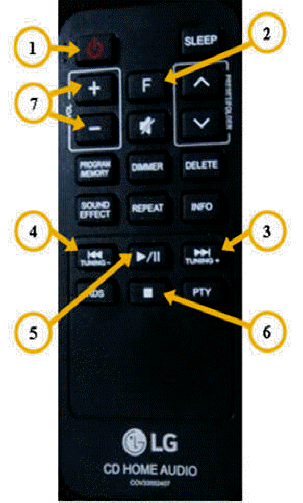
3. Blu-Ray & DVD PlayerSelect "HDMI 3 Blu-Ray & DVD Player"using the TV remote. (See previous page). Using the small Sony DVD Remote Control ensure the DVD player is turned on. Open the DVD Tray with the up arrow Open/Close button (top left) on the DVD Remote. Place the disc to play gently onto the tray. Please do NOT push the tray to close, but always use the Open/Close" button. Depending on the disc it may start to play automatically, but if the main DVD menu is displayed navigate to the disc icon at the bottom of the screen, then press the "OK" button to start playing the disc. Press "PLAY" to start the DVD if required. This DVD player will play DIVX and XVID DVDs, as well as being compatible with DVD based games, such as those supplied in the media cupboard for your entertainment. The TV can also be turned on using this small remote, and correct "source" (HDMI 3) selected with the "Sources" button at the top of the remote. 4. Locally Transmitted TVUsing the main TV remote select "TV" to watch the locally supplied TV. There are some English speaking stations, as well as Spanish & German stations. You can view the available channels with either the LIST button, or for a full EPG of the digital stations use the TV GUIDE button. To change channel use the UP or DOWN PROGRAMME selector to the right of the volume control on the TV remote or the numeric keypad. 5. Other Functions of the TVUsing the "Sources" button of the main TV remote, you can choose to browse the web (use the keyboard provided), or listen to "Spotify" music. Pressing the "Home" button on the TV remote displays the full menu of options of the TV. Any options which are "Pay To View" are not available. However YouTube and various other options are available. Most options on the TV can be selected verbally by gently pressing and holding the "Microphone" button on the TV remote, and just speaking what you want - such as "HDMI 1" and so on. 6. Hi-FiThe Hi-Fi is both a CD player and FM radio. It is easiest to use it with the remote control.
Gently press the mark at the front right of the lid to open the CD tray.
|